 HAUNTED OSTRICH
ScaleBox 2.0 Documentation
Bounding-box scale tool for the Unreal Engine level editor · UE 5.5 – 5.8 · Windows editor · editor-only, zero runtime footprint. Product page → · What's new in 2.0 (video) →
Install
- Fab: add ScaleBox to your library, install it to the engine from the Epic Games Launcher, then enable ScaleBox in Edit → Plugins for your project and restart the editor.
- Gumroad: unzip the version matching your engine into your project's
Plugins/folder (create it if needed), then restart the editor. Prebuilt Win64 binaries are included — Blueprint-only projects work.
Activating box mode
- Tap R twice: the first press gives the normal scale gizmo (native behavior), the second press switches it into box mode. Press R again (or W/E) to return to the normal gizmo.
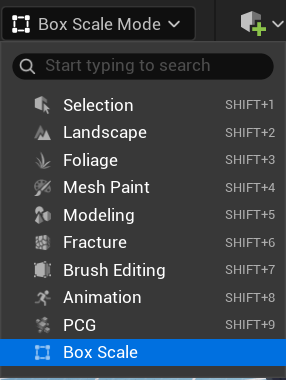
- Or click the Box Scale toolbar button next to the W/E/R transform tools (on the legacy toolbar it lives in the viewport's Options dropdown). The button jumps straight to box mode from any gizmo mode.
- Box mode is offered when the selection contains scalable geometry — a lone light or sky actor keeps the native gizmo.

Controls
| Control | Effect |
|---|---|
| Drag face handle | Scale along that axis; the opposite face stays pinned |
| Drag corner handle | Uniform scale from the opposite corner. With Free-Form Corners on (any handle's right-click menu, or preferences), the corner follows the cursor and each axis scales on its own instead (new in 2.0) |
| Drag edge handle | Two-axis scale (new in 2.0) — the bar at the middle of each box edge scales the two axes square to that edge at once; the opposite edge stays pinned |
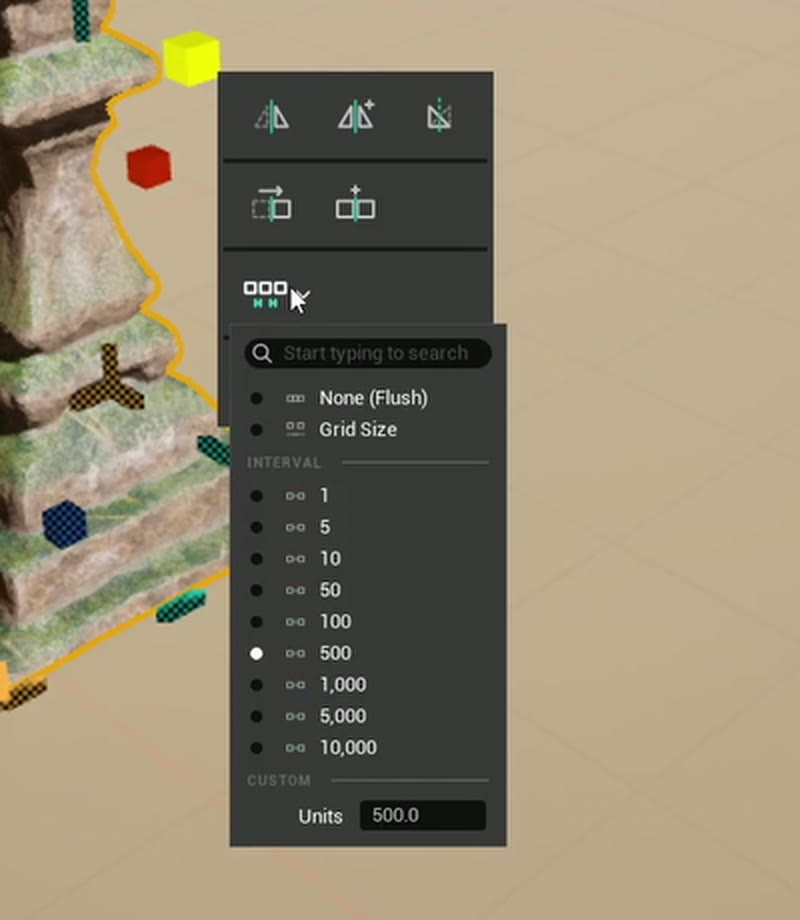
| Alt + drag any handle | Array (new in 2.0) — copies stamp out flush away from that handle, one per box length you pull, with a live count; the original never moves. A face lays a straight row along its axis; an edge steps diagonally across itself, so a single tread becomes a run of stairs; a corner steps along all three axes. Copies sit flush unless you set an Array Spacing on any handle's right-click menu (an interval, any typed value, or Grid Size to follow the editor's grid snap); hold Ctrl mid-drag to array flush regardless. Pull back to remove copies. Release to keep the row (it comes back selected), Esc to drop it |
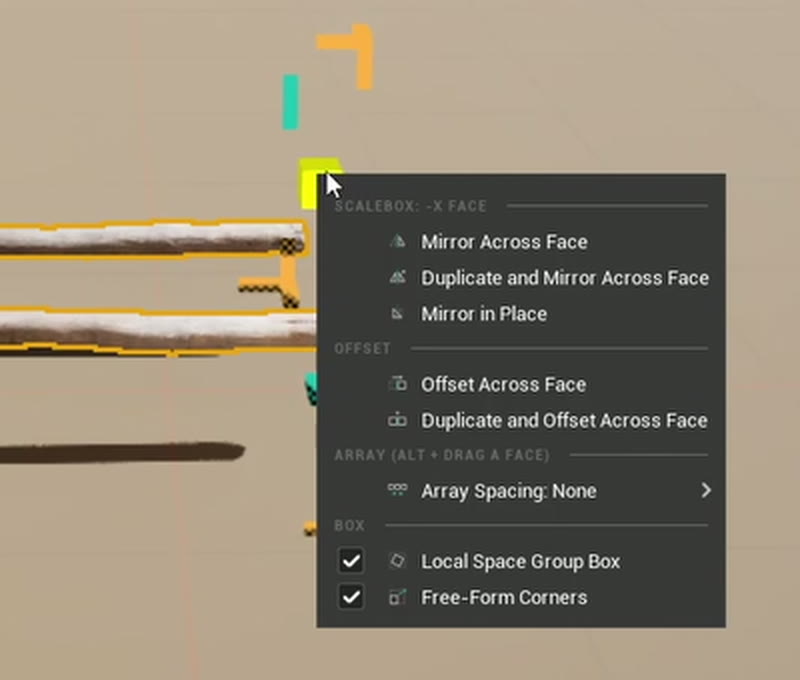
| Right-click face handle | Face menu (new in 2.0): Mirror Across Face (the selection flips over to the other side of that face), Mirror in Place (about the box center on that axis), Offset Across Face (steps one box length through the face, landing flush against where it was) — plus Duplicate and… versions that leave the original and move a copy. Also holds the Local Space Group Box toggle: with several actors selected, the box orients to the last-selected actor instead of the world axes, so a rotated row can be scaled or arrayed again along its own directions |
| Right-click edge handle | Edge menu (new in 2.0): Mirror About Edge (mirrors across both faces that meet at that edge, landing diagonally across it) and Offset Across Edge (steps diagonally across it), each with a Duplicate and… version |
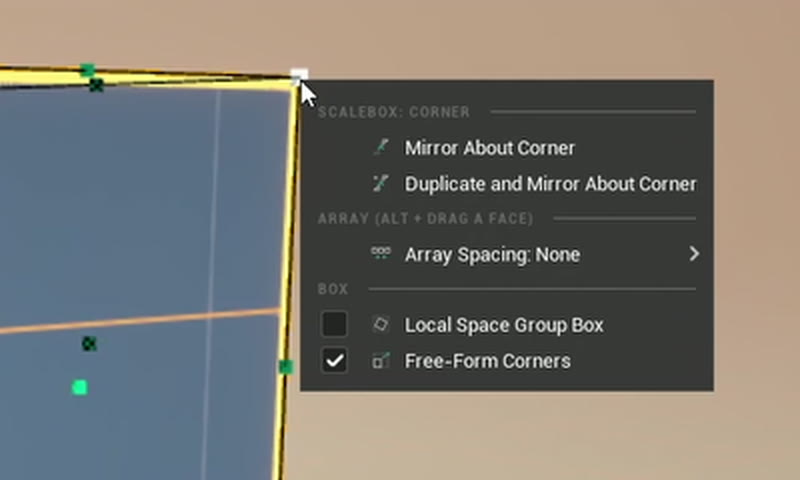
| Right-click corner handle | Corner menu (new in 2.0): Mirror About Corner (mirrors through the corner point, landing diagonally opposite), plus a Duplicate and… version |
| Shift + drag | Symmetric — scale about the box center instead |
| Ctrl + drag | Invert grid snapping (snap off → on, on → off) |
| Hold V + drag | Smart snapping: the face jumps flush to the geometry under your cursor, at any distance; with the cursor in empty space, the face snaps to geometry it passes near. Point near a mesh vertex and the handle snaps to that vertex instead (new in 2.0). Edge handles and free-form corners snap on every axis they drive |
| Esc during drag | Cancel and restore the original transforms |
| Drag past zero | Mirror the selection (sticky: ~25% overshoot to flip, so it never happens by accident; never on BSP brushes) |
- A live dimension readout shows the selection's size in units while you drag.
- Grid snapping follows the editor's snap settings, applied to the size delta, so existing off-grid placement isn't disturbed.
- Everything is one undo entry — per drag, per array, per menu action — and construction scripts re-run when the drag ends.
- Arrays, mirrors and offsets are exact for rotated actors and rotated multi-selections. Right-click and Alt-orbit behave normally everywhere that isn't a handle.
- Works on anything with bounds — meshes, Blueprints, volumes, box collisions, nav meshes, triggers — with full multi-select support.
Right-click menus
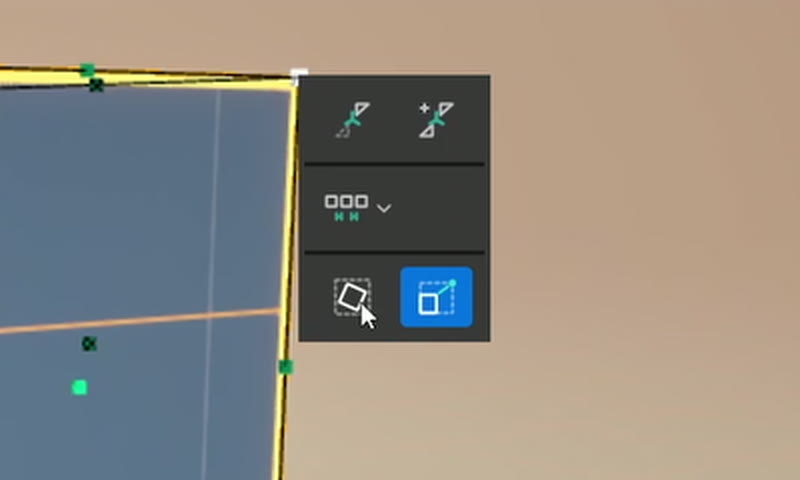
Right-click any handle to open its menu. Each menu offers what that handle itself does, every entry has an icon showing the result, and every menu carries Array Spacing and the two box toggles, so you never have to hunt for the right handle to change them.
Settings
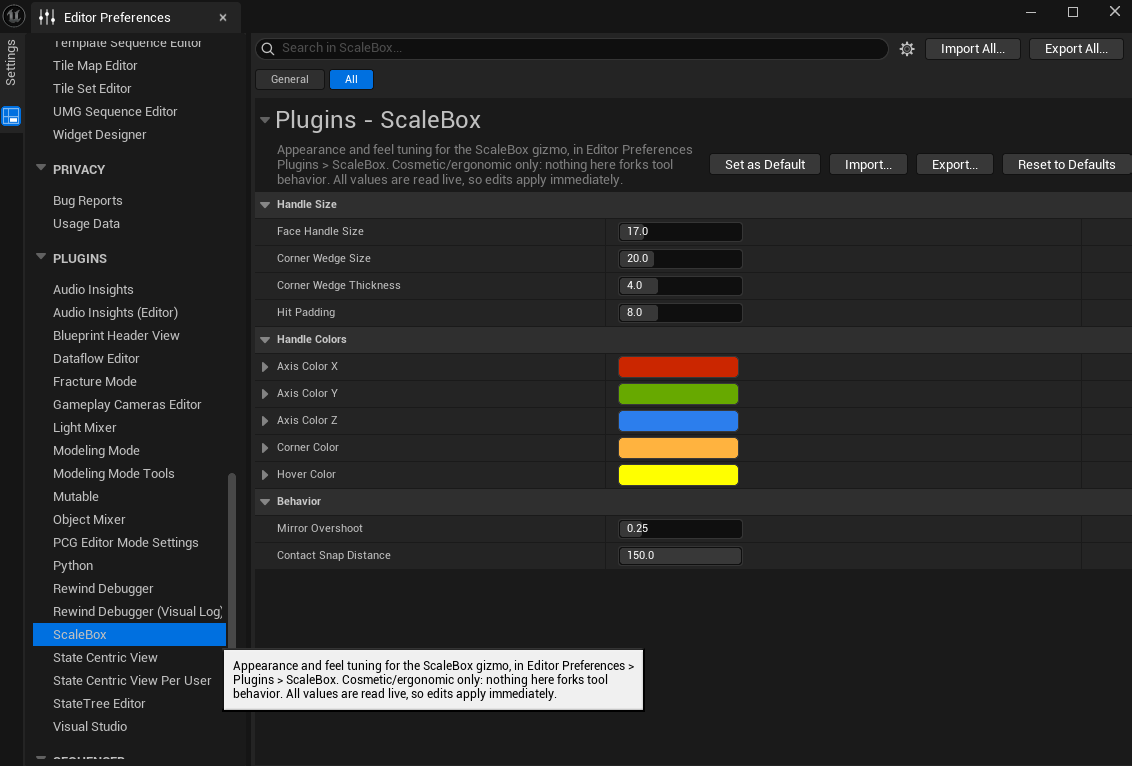
Editor Preferences → Plugins → ScaleBox: a Handle Style (Solid cubes and wedges, or Minimal — a thin box outline with small flat dots), an Edge Handles on/off switch, handle sizes, hit-test padding, a handle Color Preset (Classic, Synthwave, Haunted) plus every individual handle color, mirror overshoot threshold, contact-snap distance, vertex snap radius (0 turns vertex snapping off), Array Spacing (also on every handle menu), an Icon-Only Menu switch that turns the handle right-click menu into rows of icons, one row per group, at an Icon Size you choose (hover an icon for its name), and the Free-Form Corners and Local Space Group Box defaults. Changes apply live.
Bonus: scaffold materials
The plugin ships a fully procedural scaffold/blockout material set under /ScaleBox/Materials: world-aligned meter grid with anti-aliased lines, axis tinting, and an orange bounds frame — zero textures. Handy for greybox scenes that show exactly what you're scaling.
Known limitations (v2.0)
- Smart snapping targets what your cursor can see: point at a visible part of the target actor. Parts hidden behind the selection itself (or actors with collision disabled) can't be snap targets — the close-range snap still engages as the face approaches them.
- Ortho viewports work, but handle interaction on rotated meshes can feel imprecise there.
- A rotated multi-selection scales via its world-aligned bounds (approximate); single rotated actors are exact, and so is a group whose pieces share one rotation once Local Space Group Box is on. Arrays, mirrors and offsets are always exact.
- Alt + drag arrays skip BSP brushes (Alt orbits the camera as usual on a brush selection). To cancel an array mid-drag, let go of Alt before pressing Esc — Alt+Esc belongs to Windows.
- Actors attached to a non-uniformly scaled parent can land slightly off.
- No numeric size entry — the Details panel covers exact values as usual.
Support
Bugs, questions, feature requests: support@hauntedostrich.com
Include your engine version and, for bugs, a short clip or steps to reproduce — it makes fixes dramatically faster.